Update: since this article was written, CelesteCS Math has grown its own native Chart macro – a Bar, Line or Pie chart built directly from a range of cells, with no separate Confluence Chart Macro or manually-built data table required. For a lot of cases that is now the simpler option; see Charting your Confluence tables with the new Chart macro. The approach below – combining Math formulas with Confluence’s own Chart Macro – is still valid and worth knowing when you need a chart type or display option the native Chart macro does not offer.
Atlassian provides Chart Macro, which allows one to display a chart based on the tabular data. CelesteCS Math extends table functionality with abilities of calculation and referencing other page data, so you can empower your chart with Math macro a lot. The following article describes how to employ Math macro in charts.
Step 1. Add Chart Macro to the page
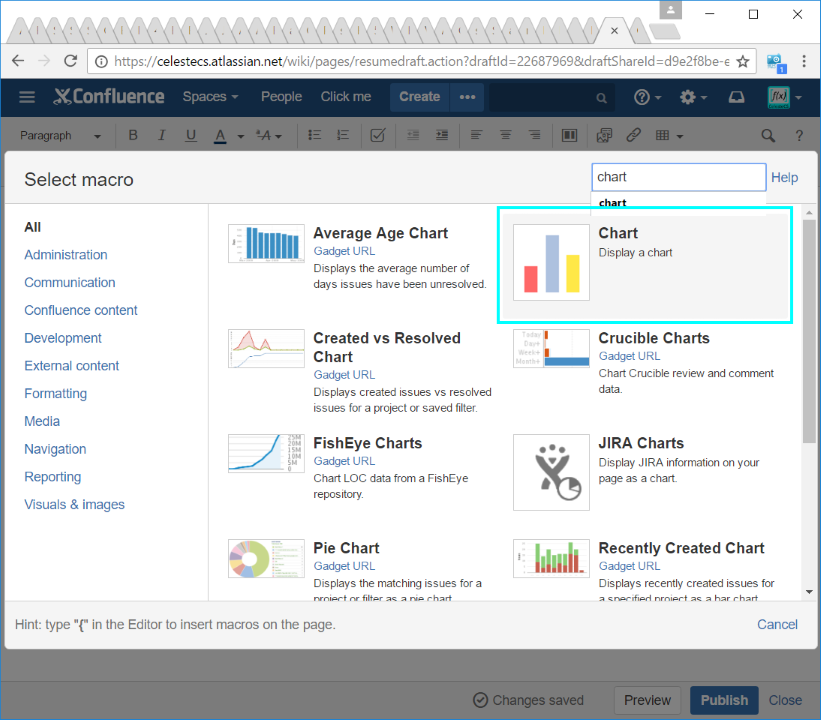
On your page click Insert more content->Other macros and enter “Chart” in the search field. Chart macro will be shown in the list:
Step 2. Configure Chart macro
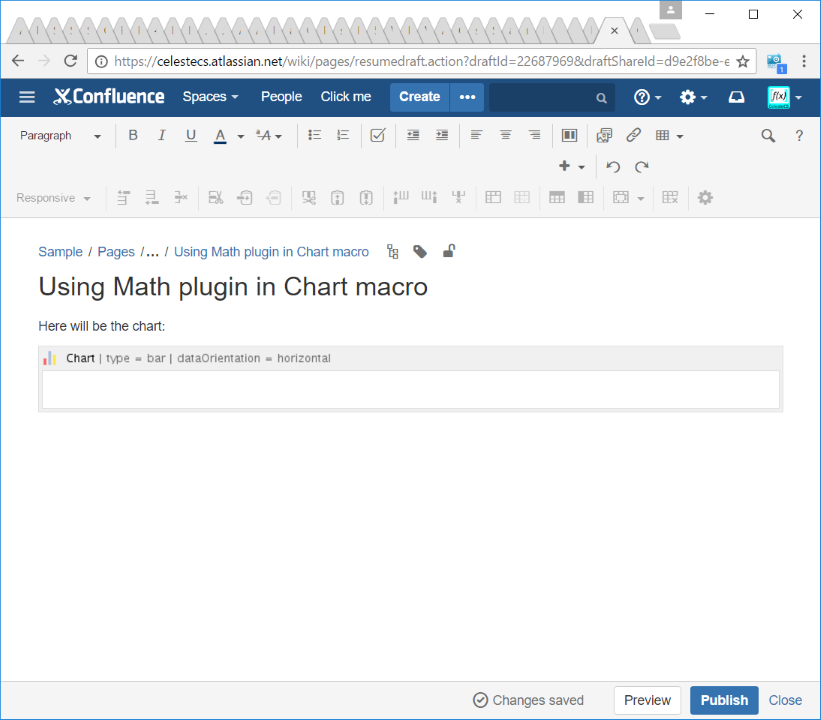
Specify the following parameters (in your case parameters and values may differ):
- Type: bar
- Content Orientation: horizontal
Press Insert button.
Step 3. Add table data to the Chart macro body
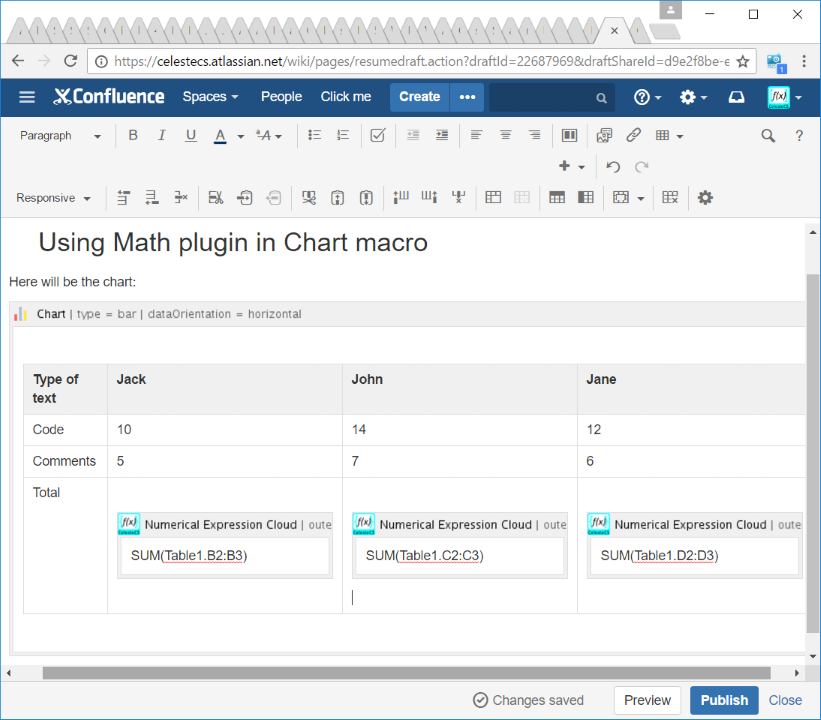
Chart macro shows tabular data, which is specified inside its body, so in simplest way you just add a table inside it. In out example we add several Math macros to calculate sum of values. You may add more complex formulas and even refer to other pages just as you do it from any Math macro instance on a Confluence page.
Step 4. Publish page
Press Publish to see the result:
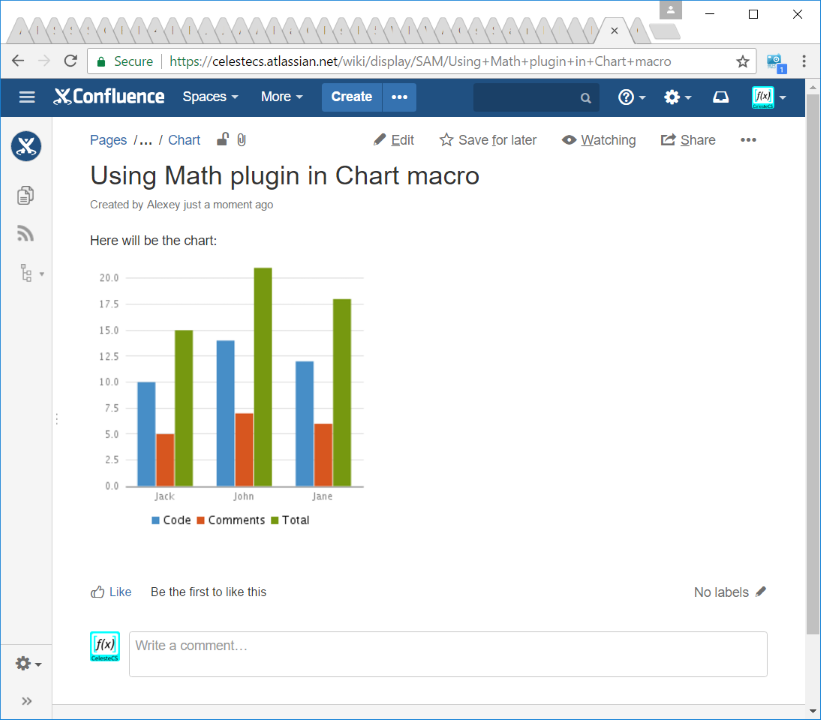
As you see, Math macro supports Chart macro out of the box and if you are familiar with both macros, you may multiply the effect of using each of them by using both.
Try it in your own Confluence: CelesteCS Math for Confluence on the Atlassian Marketplace – free trial for Cloud and Data Center.
Math saves you time? A review on the Marketplace helps other teams find it.