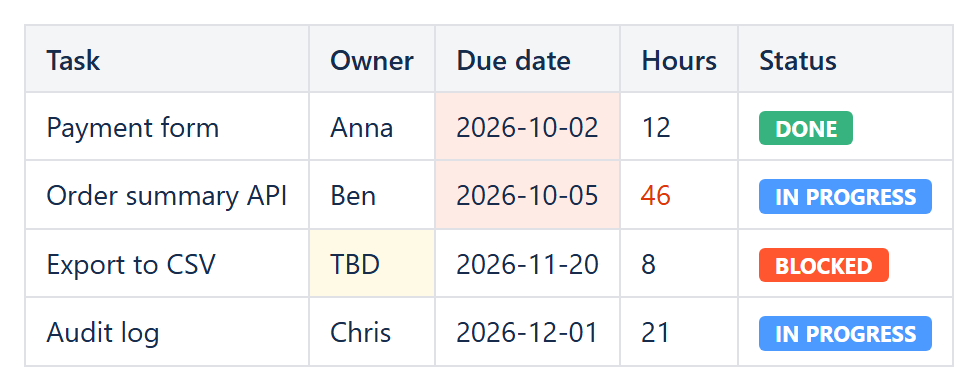
| [Enum] Rule condition (default=”Element value is equal to”) |
The type of condition to be checked. Based on this type Value1, Value 1 + Value 2 or none of them may have to be specified. May have one of the following values:
- Element value is between
- Applies formatting when the cell numeric value is in the range between Value1 and Value2 parameter values inclusively
- If cell value or Value1 or Value2 is not numerical (i.e. neither Long nor Double), the rule is not checked
- The range is taken between minimal of Value1 and Value2 and maximum of Value1 and Value2
- Element value is not between
- Applies formatting when the cell numeric value is not in the range between Value1 and Value2 parameter values exclusively
- If cell value or Value1 or Value2 is not numerical (i.e. neither Long nor Double), the rule is not checked
- The range is taken between minimal of Value1 and Value2 and maximum of Value1 and Value2
- Element value is equal to
- Applies formatting when the cell value is equal to the Value1 parameter value
- If cell value and Value1 are both numeric values, they are compared numerically, otherwise they are compared as Text (case insensitive)
- The value of Value2 parameter is ignored
- Element value is not equal to
- Applies formatting when the cell value is not equal to the Value1 parameter value
- If cell value and Value1 are both numeric values, they are compared numerically, otherwise they are compared as Text (case insensitive)
- The value of Value2 parameter is ignored
- Element value is greater than
- Applies formatting when the numerical cell value is greater than the Value1 parameter numerical value
- If cell value or Value1 is not numerical, the rule is not checked
- The value of Value2 parameter is ignored
- Element value is less than
- Applies formatting when the numerical cell value is less than the Value1 parameter numerical value
- If cell value or Value1 is not numerical, the rule is not checked
- The value of Value2 parameter is ignored
- Element value is greater than or equal to
- Applies formatting when the numerical cell value is greater than or equal to the Value1 parameter numerical value
- If cell value or Value1 is not numerical, the rule is not checked
- The value of Value2 parameter is ignored
- Element value is less than or equal to
- Applies formatting when the numerical cell value is less than or equal to the Value1 parameter numerical value
- If cell value or Value1 is not numerical, the rule is not checked
- The value of Value2 parameter is ignored
- Element text contains
- Applies formatting when the cell contains the Value1 parameter text
- The search is case insensitive
- The value of Value2 parameter is ignored
- Element text does not contain
- Applies formatting when the cell does not contain the Value1 parameter text
- The search is case insensitive
- The value of Value2 parameter is ignored
- Element text begins with
- Applies formatting when the cell begins with the Value1 parameter text
- The search is case insensitive
- The value of Value2 parameter is ignored
- Element text ends with
- Applies formatting when the cell ends with the Value1 parameter text
- The search is case insensitive
- The value of Value2 parameter is ignored
- Element is blank
- Applies formatting when the cell is blank
- The check is done by measuring cell text length – if it is zero, then the cell is blank
- The values of Value1 and Value2 parameters are ignored
- Element is not blank
- Applies formatting when the cell is not blank
- The check is done by measuring cell text length – if it is greater than zero, then the cell is not blank
- The values of Value1 and Value2 parameters are ignored
- Element is a numeric value
- Applies formatting when the cell is a numerical value
- The check is done by checking for Long and Double types
- The values of Value1 and Value2 parameters are ignored
- Formula result value is true
- Applies formatting when the result of the formula, specified in Value1 parameter, is true
- Any applicable formula from the list of CelesteCS Math add-on formulas may be used
- The table cells may be referenced as A1, $A1, A$1, $A$1
- The table ranges may be specified as $A$1:$B$2
- The value of Value2 parameter is ignored
- Element value is above average
- Applies formatting when the cell’s numeric value is greater than the average of all numeric values in the evaluated range
- If the cell value is not numerical, the rule is not checked
- The values of Value1 and Value2 parameters are ignored
- Element value is below average
- Applies formatting when the cell’s numeric value is less than the average of all numeric values in the evaluated range
- If the cell value is not numerical, the rule is not checked
- The values of Value1 and Value2 parameters are ignored
- Element value is in top N
- Applies formatting when the cell’s numeric value is among the N largest values in the evaluated range
- Value1 specifies N, and must be a whole number
- Ties at the threshold may result in more than N cells matching, the same way Excel’s own Top N rule works
- The value of Value2 parameter is ignored
- Element value is in bottom N
- Applies formatting when the cell’s numeric value is among the N smallest values in the evaluated range
- Value1 specifies N, and must be a whole number
- Ties at the threshold may result in more than N cells matching, the same way Excel’s own Bottom N rule works
- The value of Value2 parameter is ignored
- Element value is a duplicate
- Applies formatting when the cell’s text value (trimmed, case insensitive) occurs more than once in the evaluated range
- The values of Value1 and Value2 parameters are ignored
- Element value is unique
- Applies formatting when the cell’s text value (trimmed, case insensitive) occurs exactly once in the evaluated range
- The values of Value1 and Value2 parameters are ignored
- Element date is before
- Applies formatting when the cell’s date value is before the date specified in Value1
- Value1 must be either the literal word “Today” or a date in ISO-8601 format (YYYY-MM-DD)
- The cell value itself must also be in ISO-8601 format (YYYY-MM-DD), or a native Confluence date element (inserted by typing // in the editor and picking a date), to be recognized as a date
- The value of Value2 parameter is ignored
- Element date is after
- Applies formatting when the cell’s date value is after the date specified in Value1
- Value1 must be either the literal word “Today” or a date in ISO-8601 format (YYYY-MM-DD)
- The cell value itself must also be in ISO-8601 format (YYYY-MM-DD), or a native Confluence date element (inserted by typing // in the editor and picking a date), to be recognized as a date
- The value of Value2 parameter is ignored
- Element date is today
- Applies formatting when the cell’s date value is equal to today’s date
- The cell value must be in ISO-8601 format (YYYY-MM-DD), or a native Confluence date element (inserted by typing // in the editor and picking a date), to be recognized as a date
- The values of Value1 and Value2 parameters are ignored
- Element date is overdue
- Applies formatting when the cell’s date value is before today’s date
- The cell value must be in ISO-8601 format (YYYY-MM-DD), or a native Confluence date element (inserted by typing // in the editor and picking a date), to be recognized as a date
- The values of Value1 and Value2 parameters are ignored
- Element date is overdue by more than N days
- Applies formatting when the cell’s date value is more than N days before today’s date – for example, to highlight SLA breaches
- Value1 specifies N, and must be a whole number greater than 0
- The cell value must be in ISO-8601 format (YYYY-MM-DD), or a native Confluence date element (inserted by typing // in the editor and picking a date), to be recognized as a date
- The value of Value2 parameter is ignored
- Element date is in the next N days
- Applies formatting when the cell’s date value is between today and N days from today, inclusive
- Value1 specifies N, and must be a whole number
- The cell value must be in ISO-8601 format (YYYY-MM-DD), or a native Confluence date element (inserted by typing // in the editor and picking a date), to be recognized as a date
- The value of Value2 parameter is ignored
- Element date is in the last N days
- Applies formatting when the cell’s date value is between N days before today and today, inclusive
- Value1 specifies N, and must be a whole number
- The cell value must be in ISO-8601 format (YYYY-MM-DD), or a native Confluence date element (inserted by typing // in the editor and picking a date), to be recognized as a date
- The value of Value2 parameter is ignored
- Element date is yesterday
- Applies formatting when the cell’s date value is equal to yesterday’s date
- The cell value must be in ISO-8601 format (YYYY-MM-DD), or a native Confluence date element (inserted by typing // in the editor and picking a date), to be recognized as a date
- The values of Value1 and Value2 parameters are ignored
- Element text length is greater than
- Applies formatting when the length of the cell’s text is greater than the number specified in Value1
- Value1 must be a whole number
- The value of Value2 parameter is ignored
- Element text length is less than
- Applies formatting when the length of the cell’s text is less than the number specified in Value1
- Value1 must be a whole number
- The value of Value2 parameter is ignored
- Element text is one of New!
- Applies formatting when the cell text equals one of the values listed in Value1
- List items are separated with commas, semicolons or '|', e.g. 'Done; Closed; Resolved'
- The comparison is case insensitive and ignores surrounding and repeated spaces
- The value of Value2 parameter is ignored
- Element text matches regular expression New!
- Applies formatting when the cell text contains a match of the regular expression in Value1, e.g. '^[A-Z]+-\d+$' for issue keys
- Matching is case insensitive; use ^ and $ to match the whole text
- An invalid expression never matches; very expensive expressions are stopped and treated as no match
- The value of Value2 parameter is ignored
- Element date is in this week New!
- Applies formatting when the cell's date is in the current week (Monday to Sunday)
- The cell value must be in ISO-8601 format (YYYY-MM-DD), or a native Confluence date element (inserted by typing // in the editor and picking a date), to be recognized as a date
- The values of Value1 and Value2 parameters are ignored
- Element date is in this month New!
- Applies formatting when the cell's date is in the current calendar month
- The cell value must be in ISO-8601 format (YYYY-MM-DD), or a native Confluence date element (inserted by typing // in the editor and picking a date), to be recognized as a date
- The values of Value1 and Value2 parameters are ignored
- Element date is in this quarter New!
- Applies formatting when the cell's date is in the current calendar quarter
- The cell value must be in ISO-8601 format (YYYY-MM-DD), or a native Confluence date element (inserted by typing // in the editor and picking a date), to be recognized as a date
- The values of Value1 and Value2 parameters are ignored
- Element date is on a weekend New!
- Applies formatting when the cell's date is a Saturday or a Sunday
- The cell value must be in ISO-8601 format (YYYY-MM-DD), or a native Confluence date element (inserted by typing // in the editor and picking a date), to be recognized as a date
- The values of Value1 and Value2 parameters are ignored
- Element date is in the next N working days New!
- Applies formatting when the cell's date is between today and the N-th working day (Monday to Friday) after today, inclusive
- Value1 specifies N, and must be a whole number
- The cell value must be in ISO-8601 format (YYYY-MM-DD), or a native Confluence date element (inserted by typing // in the editor and picking a date), to be recognized as a date
- The value of Value2 parameter is ignored
- Element status color is one of New!
- Applies formatting when the cell contains a Confluence Status macro (or a Jira status lozenge) of one of the colors listed in Value1
- Colors: Grey, Red, Yellow (or Amber), Green, Blue, Purple, separated with commas, e.g. 'Red, Yellow'
- Tip: combine with Affected elements = 'Whole row' to color the whole row by its status
- On Data Center, Grey and Purple status macros look the same to the rule and are both treated as Grey
- The value of Value2 parameter is ignored
|
| [String] Value 1 (default=empty) |
The first parameter of the condition (where applied): a value, a list ('Element text is one of', 'Element status color is one of'), a regular expression ('Element text matches regular expression') or N for the 'N days' / 'N working days' / 'top N' / 'text length' conditions. |
| [String] Value 2 (default=empty) |
The second parameter of the condition (where applied). |
| [String] Applies to (default='All tables') |
Specifies the cells to apply conditional formatting to.
- Set to 'All tables' to apply formatting to all cells of all tables.
- Set to 'Whole text' to apply formatting to whole macro body text. Read more here.
- An exact column range may be specified to check conditions on the specified columns only. Note, that exact Table specificator should also be specified. Example: 'Table1.A:B'.
- Several ranges may be specified, separated with ';' symbol. Example: 'Table1.A:B; Table1.D:E'.
- New! A column can also be named by its header text (the first row of the table): '[Status]' (that column in every table that has it), 'Table2.[Status]', or a range of columns '[Start]:[End]'. Rules keep working when columns are added or moved.
|
| [String] Affected elements (default='Self') |
Specifies the cells to apply conditional formatting to. Examples: 'A:B', '2:3'.
- Set to 'Self' to apply formatting to the cell itself.
- An exact column or row range may be specified to apply formatting to the specified columns or rows only. Note, that Table specificator should not be specified. Examples: 'A:B', '2:3'.
- Set to 'Whole row' or 'Whole column' to format the whole row or column of the conformant cell.
- New! Columns of the same row can be named by their header text: '[Status]' or '[Task]:[Status]'.
- Several ranges may NOT be specified.
|
| [Boolean] Stop if true (default=false) |
Specifies whether to stop consequent rules processing over the conformant element. |
| [Enum] Bold text (default=”Keep original”) |
Specifies, whether to apply bold style to the conformant element's text. If this parameter is set to “Keep original”, the bold style will not be changed. May have one of the following values:
- Keep original
- Apply style
- Remove style
|
| [Enum] Italic text (default=”Keep original”) |
Specifies, whether to apply italic style to the conformant element's text. If this parameter is set to “Keep original”, the italic style will not be changed. May have one of the following values:
- Keep original
- Apply style
- Remove style
|
| [Enum] Underline text (default=”Keep original”) |
Specifies, whether to apply underline style to the conformant element's text. If this parameter is set to “Keep original”, the underline style will not be changed. May have one of the following values:
- Keep original
- Apply style
- Remove style
|
| [String] Text color (default=”Keep original”) |
Specifies whether to apply a specific color to the conformant element's text. Set to "Keep original" to keep the original color. May have one of the following values:
- Keep original
- CSS colors
- aquamarine
- green
- and so on…
- Hex colors
- #FFCCCC
- #555555
- and so on…
|
| [String] Background color (default=”Keep original”) |
Specifies, whether to apply a specific background color to the conformant element. Set to "Keep original" to keep the original color. May have one of the following values:
- Keep original
- CSS colors
- aquamarine
- green
- and so on…
- Hex colors
- #FFCCCC
- #555555
- and so on…
- Confluence table background colors
- highlight-grey
- highlight-red
- highlight-green
- highlight-blue
- highlight-yellow
|
| [String] Replacement text (default=”Keep original”) |
Specifies the text to replace the text of the conformant element. Set to "Keep original" to keep the original text. May have one of the following values:
- Keep original
- Any text to replace the text of conformant element with
|
| [Enum] Insert status color (default=”None”) |
Inserts a colored Confluence-style status lozenge instead of the conformant element’s text, replacing whatever Replacement text would otherwise do. Set to “None” to disable and use Replacement text normally. May have one of the following values:
- None
- Grey
- Red
- Yellow
- Green
- Blue
- Purple
|
| [String] Insert status title (default=empty) |
The text shown inside the status lozenge. If left empty, the conformant element’s own original value is used as the title. Only used when Insert status color is not “None”. |
[Boolean] Hide row (default=false)
New! |
When the condition is met, the whole table row is removed from the page - for example, to show only open items of a long list. Other rules still see the hidden rows while they are evaluated (e.g. "top N" counts them). The row is removed on the server, so it is also absent from the page export. |
[Enum] Preset (default="None")
New! |
A ready-made set of rules. When set to anything but "None", Rule condition, the values, colors and styles of this macro are ignored; Applies to, Affected elements, Hide row and Stop if true still apply. May have one of the following values:
- None
- RAG status (Red / Amber / Green text) - colors cells whose text is Red, Amber or Green, or a common synonym (Blocked, Late, Off track / At risk, Delayed / On track, Done, OK, ...)
- Overdue dates - dates before today in red
- Due within 7 days - dates from today to 7 days ahead in amber
- Overdue and due within 7 days - both of the above
- Blank cells - empty cells in grey
- Duplicate values - repeated values in amber
- Top 10 values / Bottom 10 values - in green / red
- Negative numbers - numbers below zero with red text
Tip: "Overdue dates" with Affected elements = "Whole row" colors whole rows; with Hide row = true it hides overdue items. |