Conditional Rules Manager macro applies conditional formatting rules to own contents: tables or even whole text.
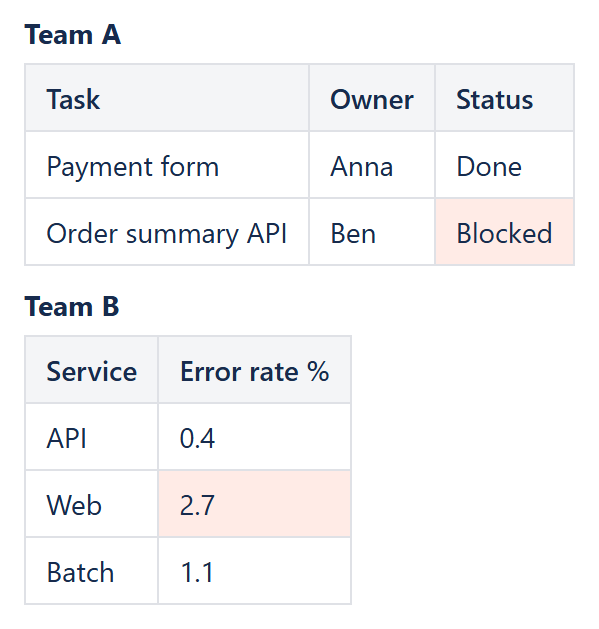
Example: one Conditional Rules Manager formatting two tables with different rules (Table1 and Table2).
Conditional rules are set by adding Conditional Rule macros (one for each condition) to the macro body. The rules are processed in the order corresponding to their order in the Rules Manager macro body.
Conditional Rules Manager has the following parameters:
| Parameter | Description |
|---|---|
| Skip heading cells | Specifies whether to remove heading cell elements from the list of checked elements. If this parameter value is true, only “td” elements are processed. If this parameter is false, both “td” and “th” elements are processed. Supported values are true (default) and false. |
| Decimal symbol | Specifies symbol used to separate the integer part from the fractional part of a value. Supported values are ".(dot)" (default) and ",(comma)". |
| Digit grouping symbol | A symbol used to separate the groups of digits of a value. Supported values are "(no grouping symbol)" (default), " (space)", ".(dot)", ",(comma)" and "'(apostrophe)". |
Tables produced by other macros New!
The rules work on the rendered content of the Rules Manager body, so tables produced by other macros placed inside it can be formatted too:
| Macro inside the Rules Manager | Data Center | Cloud |
|---|---|---|
| Plain Confluence table | Yes | Yes |
| Status macro in table cells (rule conditions see the status text; Element status color is one of sees its color) | Yes | Yes |
| Reporting Table View | Yes | No - rendered separately by Confluence |
| Page Properties Report | Yes | No - built in the browser |
| Task Report | Yes | Yes |
| Content Report Table | Yes | Not verified |
Columns of such tables can be addressed by their header text, e.g. Applies to = '[Status]', which stays correct when the report's columns change.