Not every report starts life in Jira or Confluence – a monitoring tool, an internal API, or a nightly export job often produces plain JSON, and getting that onto a status page usually means someone manually retyping numbers into a table. Reporting Json Data Provider reads that JSON directly, from either the macro body or a page attachment, and feeds it into the same Table View or List View macros used for Jira and Confluence data.
Small data: paste it into the macro body
With Data content type: Text only, paste the JSON array straight into the Json data parameter:
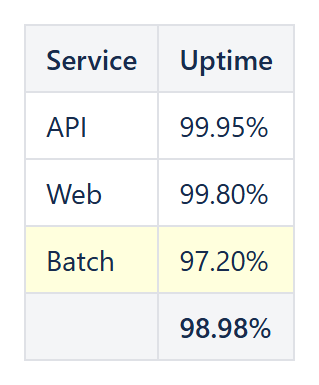
[{"service":"API","uptime":99.95},{"service":"Web","uptime":99.8},{"service":"Batch","uptime":97.2}]
and reference fields the same way as any other data provider: a Table Item with CurrentItem.service and another with CurrentItem.uptime builds a two-column table from it, with a third column formatted via Format type: Percent if the raw numbers are fractions rather than already-multiplied percentages.
Larger data: an attachment file
For anything bigger than a handful of rows, attach the JSON (or plain text) file to the page instead, and set Json data attachment page name and Json data attachment file name to point at it. This is the natural fit for a nightly export job that already writes a JSON file – attach the latest file to the page (by whatever automation already produces it) and the report rebuilds itself from the new attachment on the next view, with no manual retyping at all.
When the array is nested inside an object
A REST API response is often not a bare array but an object with the array nested inside, commonly under a key like results or values. Set Json data root to that key’s path so the data provider starts iterating from the right place instead of failing to find an array at the top level.
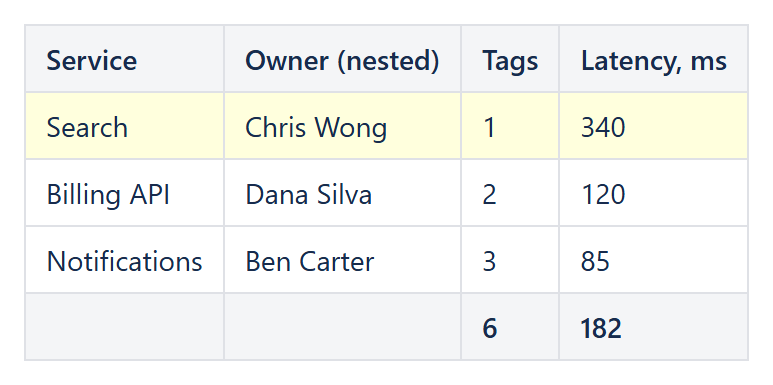
Example: Json data root results, a nested owner.name, a tag count and highlighted slow services.
Filtering, sorting and formatting still apply
A JSON-backed report is a normal Reporting Table View underneath, so Filter, Sort/Distinct by/Limit, per-column formatting and conditional row highlighting all work exactly the same way as they do for Jira or Confluence data – the data provider is the only thing that changes.
Try it in your own Confluence: CelesteCS Reporting for Confluence on the Atlassian Marketplace – free trial for Cloud and Data Center.
Reporting saves you time? A review on the Marketplace helps other teams find it.